Binning

Overview

Binning is an essential process in reflectivity reduction within QuickNXS, organizing raw data into manageable intervals for accurate analysis. There are two types of binning: time-of-flight binning and Q binning.

An initial time-of-flight binning step processes the raw event data from the sample run and direct beam run to allow for normalization. This step is mandatory.

There is an optional Q binning step, which is the last thing that happens when the reflectivity curve is calculated.

This guide explains the available binning options in QuickNXS and how to configure them.

Note

All binning options are ultimately passed to the MagnetismReflectometryReduction algorithm in Mantid.

Binning Options

The following options allow users to fine-tune binning behavior:

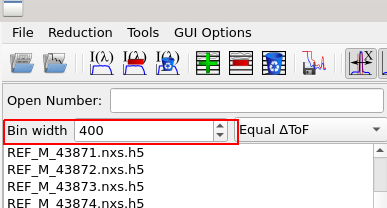
Bin Width (Numeric Input, Applied Globally)

  • Constraints: Must be an integer value between 5 and 10000 microseconds.

  • What It Does: Defines the width, in microseconds, of bins used to rebin the input workspace in time-of-flight (TOF).

  • How It Works:

    • This step always occurs and cannot be skipped.

    • If the minimum TOF (Time-of-Flight) value is ≤ 0, Bin Width is also used as the TOF minimum.

    • The direct beam workspace is rebinned to match the binning of the input workspace before reflectivity is calculated.

  • How to Use It: Enter a numeric value to specify the desired bin width.

Bin Width

Entering the Bin Width

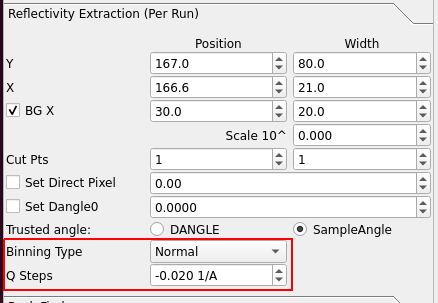
Binning Type (Multi-select, Per-Run)

  • What It Does: Controls the binning of the final reduced workspace (converted to Q-space).

  • How It Works:
    • There are three options for Q binning, which happens when the reflectivity data is converted to Q-space:

      1. None: the counts from the pixels in the region-of-interest are summed in pixel-time space and then converted to Q. No additional binning.

      2. Normal binning: the counts from the pixels in the region-of-interest are summed in pixel-time space and then converted to Q. Finally, the resulting counts vs Q data is binned according to the configured Q binning.

      3. Constant-Q binning: the data is first converted to Q and then summed according to the configured Q binning to produce counts vs Q.

    • For Normal binning and Constant-Q binning, rebinning is performed using Q Steps, in units of 1/Å:

      • If positive, bins are evenly spaced.

      • If negative, bins are spaced logarithmically using a geometric progression.

  • How to Use It: Select the binning type either in the reduction table or (for the active run) in the left-hand side panel Reflectivity Extraction (Per Run).

Q Steps (Numeric Input, Per-Run)

  • Constraints: Must be a floating point value between -0.1 and 0.1 units of 1/Å.

  • What It Does: Defines the bin width for the rebinning in Q-space.

  • How It Works:

    • Q Steps is used for both Normal and Constant-Q binning.

    • It controls the resolution of the final reduced workspace.

      • If Q Steps is positive, linear binning is applied with evenly spaced bins.

      • If Q Steps is negative, logarithmic binning is applied, where bin edges follow a geometric progression.

  • How to Use It: Enter a numeric value to specify the bin width for Q-space binning. Use negative values for logarithmic binning.

Binning Options for the Active Run

Changing Binning Options for the Active Run

Binning Options in the Reduction Table

Changing Binning Options in the Reduction Table

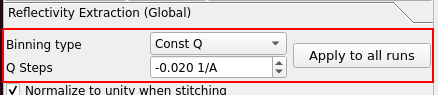
Apply the Same Binning Options to All Runs

Apply the Same Binning Options to All Runs in the Reduction Table

Binning Workflow

To apply binning settings effectively, follow these steps:

1. Set the Input Workspace Binning:

  • Enter a Bin Width value to define the initial binning.

  • If TOF min is ≤ 0, Bin Width will also be used as the TOF minimum.

  • The direct beam workspace is automatically rebinned to match this setting.

2. Apply Q Binning (Optional):

  • Select the binning type and Q steps for each run, either in the reduction table or in the panel Reflectivity Extraction (Per Run). Alternatively, to set the same binning type and Q steps for all runs in the reduction table, use the button Apply to all runs under Reflectivity Extraction (Global).

  • The reflectivity plot is updated automatically when updating binning options.

By adjusting these options, users can customize their reflectivity reduction workflow to achieve the desired data resolution and accuracy.